Privacy Guides
How to Hide Private Details in Screenshots Before Sharing Online
Learn how to cover names, usernames, contact details and other
sensitive information in screenshots before sharing them on dating
sites, email, social media and messaging apps.
Updated: 8 September 2026
•
Approximate reading time: 7 minutes
Screenshots are one of the quickest ways to share something
interesting, funny or useful online.
The problem is that screenshots often contain far more information
than you intended to share. A name, profile photograph, email
address, telephone number, username or location may be visible
somewhere in the image.
Before posting a screenshot publicly, it is worth checking the
entire image and covering anything that does not need to be shown.
In this guide, you will learn:
- Why screenshots can reveal private information.
- What details you should check before sharing.
- How the MixPlay Scratch Card Tool can be used.
- How it can help with dating, email and social screenshots.
- When blur or pixelation may be a better option.
Why Should You Check a Screenshot Before Sharing It?
A screenshot captures everything visible on the screen at that
moment. That can include information you were not concentrating on
when you took it.
Even small details can sometimes reveal information about you or
another person.
Names
Full names, display names and usernames may identify a person.
Contact details
Email addresses and telephone numbers may be visible in messages
or account screens.
Profile information
Photos, locations, workplaces and other profile details may
appear around the main content.
The safest approach is to look over the full screenshot before
sharing it and decide which parts actually need to remain visible.
Where Can Private Details Appear?
Private information can appear in many different types of screenshots,
especially when you are sharing content from communication or social
platforms.
Dating sites and apps
Names, profile photographs, usernames, ages, locations and
conversation details may all appear in the same screenshot.
Email
Email screenshots can include addresses, signatures, telephone
numbers, job titles and other identifying information.
Social media
Facebook, Instagram, TikTok and other platforms may show usernames,
profile pictures, comments and locations around the content.
Messaging apps
WhatsApp, Messenger and similar apps may display names, numbers
and profile photographs next to messages.
Online selling
Screenshots or photographs may show addresses, order numbers,
number plates or personal documents in the background.
Forums and communities
Usernames, account information and private messages may remain
visible when sharing a screenshot in a group or forum.
How to Use the MixPlay Scratch Card Tool
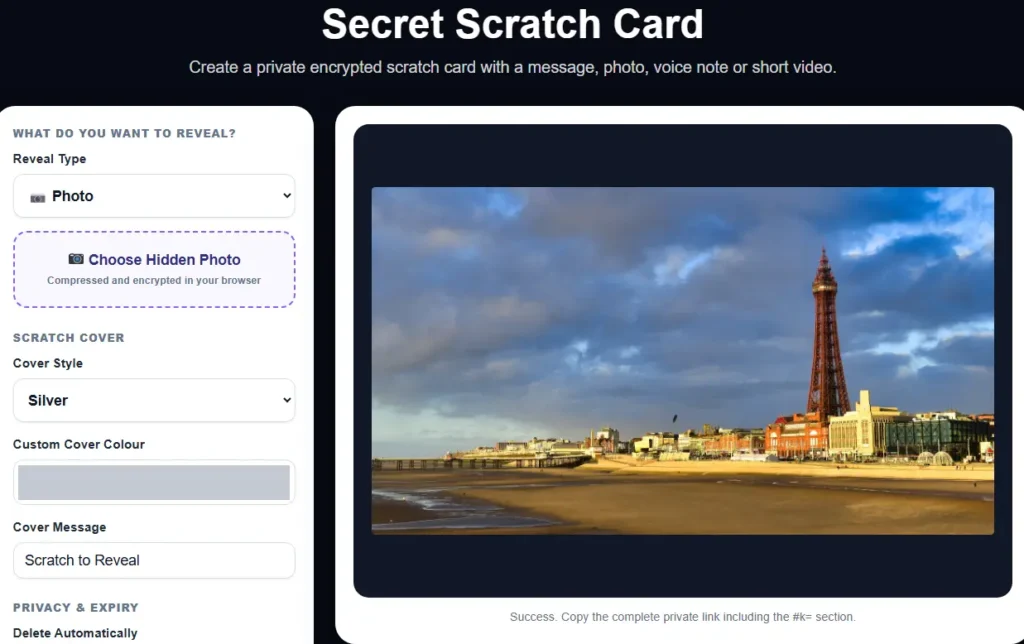
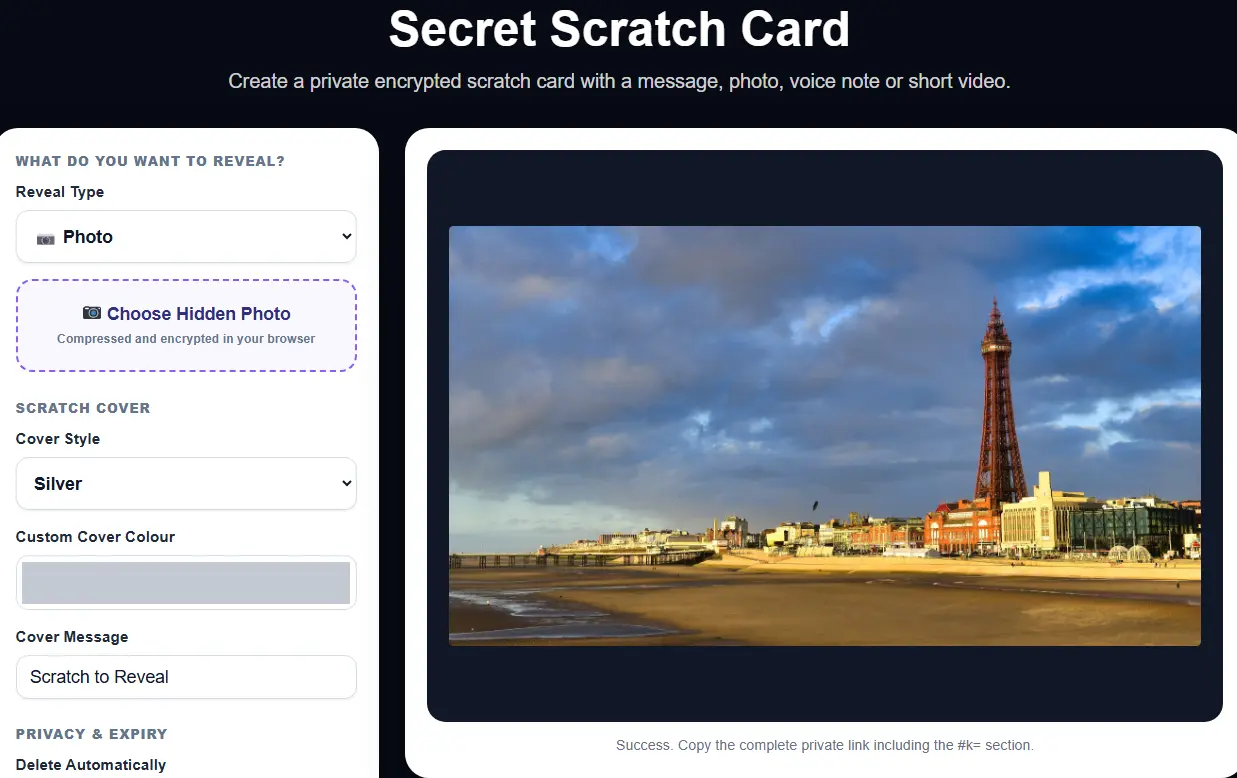
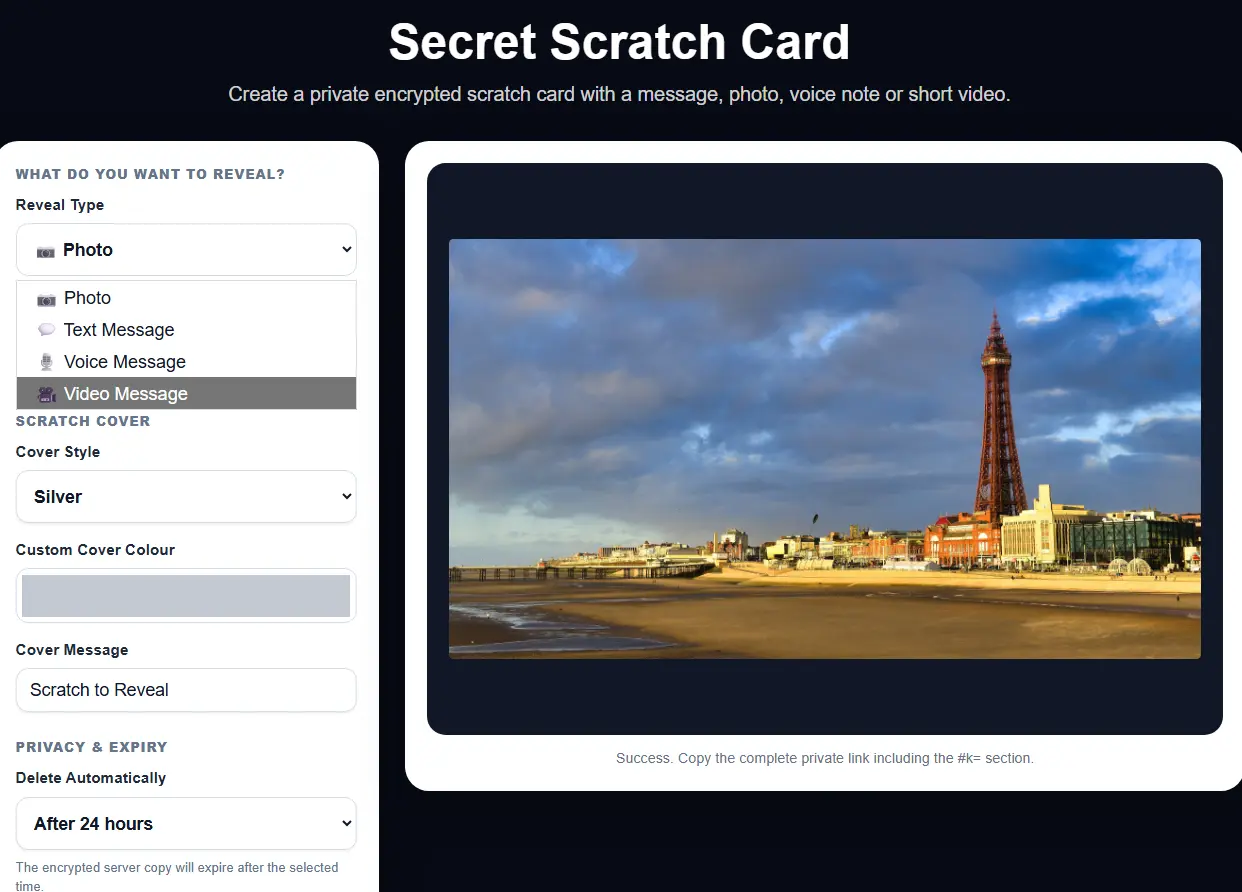
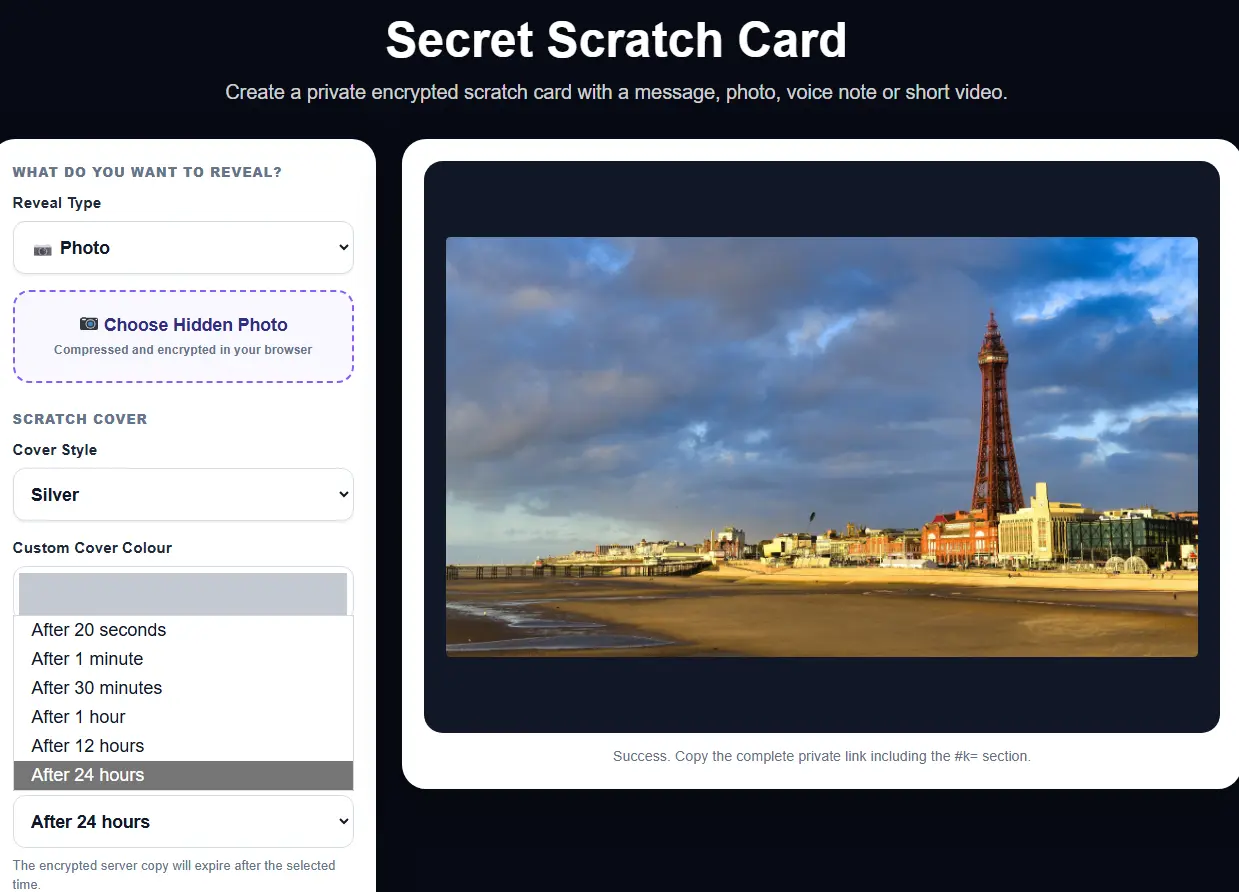
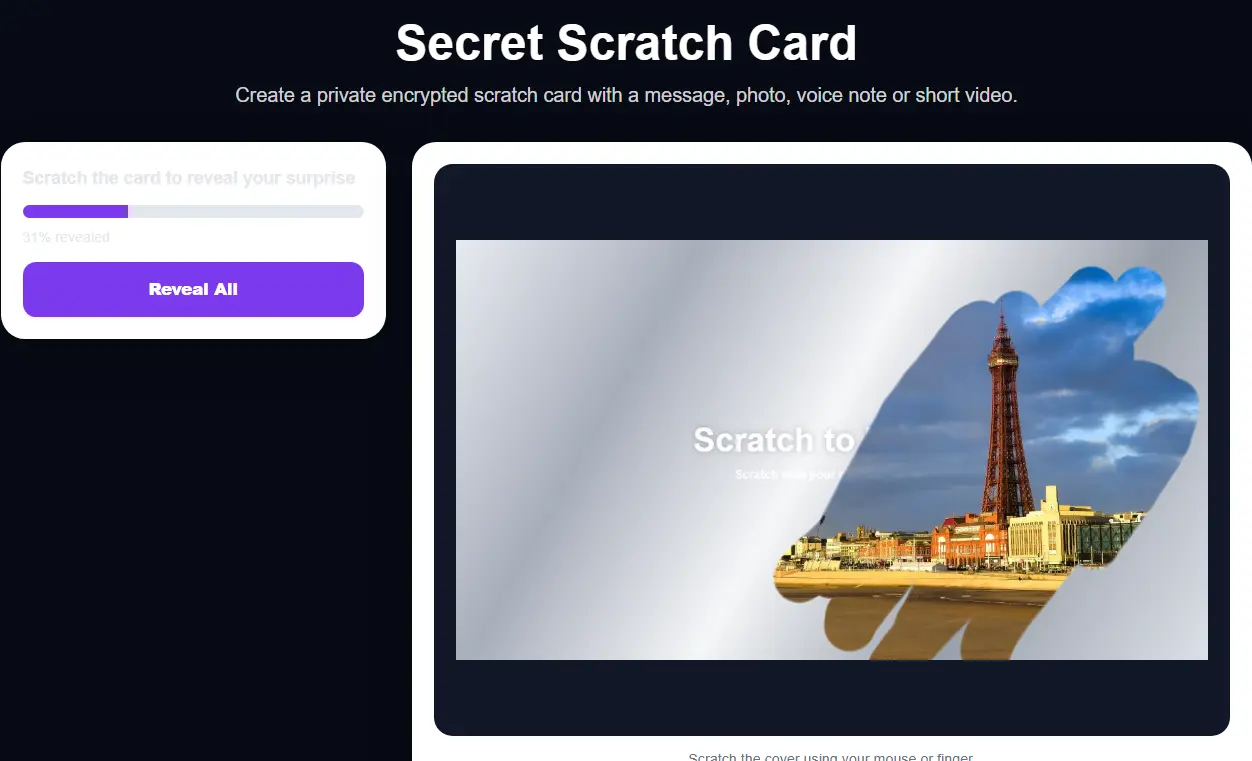
The MixPlay Scratch Card Tool lets you add a scratch-card style
covering over selected areas of an image.
1
Open the Scratch Card Tool
Visit the MixPlay Scratch Card page in your browser.
2
Choose your image
Upload the screenshot or photograph you want to prepare.
3
Identify the private areas
Look for names, faces, messages, contact details or other
information that you do not want immediately visible.
4
Add the scratch-card effect
Position the effect over the area you want to cover and adjust
it until it fits correctly.
5
Check the finished image
Review the whole image before sharing it to make sure you have
not missed another private detail.
Using the Tool for Dating Screenshots
Dating screenshots are a common example because one image can contain
a surprising amount of information about another person.
You may only want to show a funny message or part of a conversation,
but the screenshot could also include the person’s name, location,
photograph or username.
Before sharing a dating screenshot, check:
- Names and usernames.
- Profile photographs.
- Age or location information.
- Phone numbers or email addresses.
- Other messages that are not relevant.
Respect other people’s privacy.
Even when you are sharing a funny or interesting conversation,
avoid publishing identifying or sensitive information that does
not need to be shown.
Using the Tool for Email Screenshots
Email screenshots often contain more private information than people
realise.
An email signature can include a full name, company, telephone number,
office address and website. The sender and recipient email addresses
may also be visible.
If you only need to share one part of an email, covering unnecessary
information can make the screenshot clearer and more focused.
Using the Tool for Social Media Screenshots
Social media screenshots are often shared on Facebook, Instagram,
TikTok, Reddit and community groups.
Before posting, check whether the screenshot contains usernames,
profile photographs, locations, messages or comments from people
who are not relevant to the post.
Covering unnecessary areas can also help direct attention toward the
part of the screenshot that you actually want people to notice.
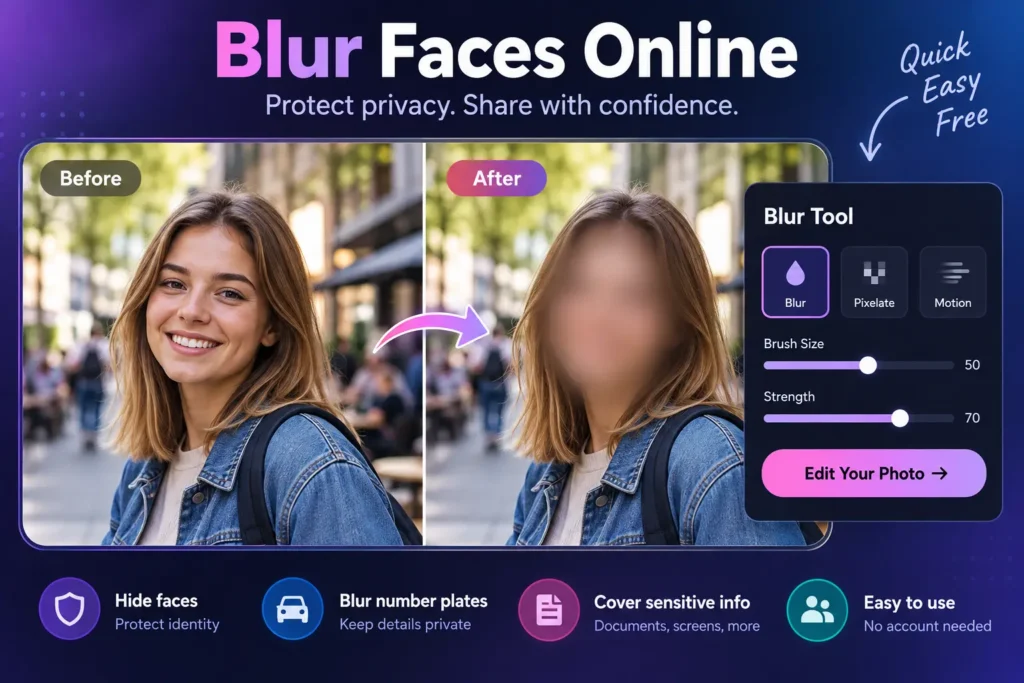
Scratch Card, Blur or Pixelate?
The best tool depends on the type of result you want.
What Should You Check Before Posting a Screenshot?
A quick final check can prevent information being shared accidentally.
- Names and usernames.
- Email addresses.
- Telephone numbers.
- Profile photographs.
- Home or workplace locations.
- Account numbers or order information.
- Car number plates.
- Documents or computer screens in the background.
- Information belonging to another person.
Common Screenshot-Sharing Mistakes
Only checking the centre of the image
Private details often appear in headers, sidebars, notification bars
or other areas around the main content.
Forgetting profile pictures
Even when a person’s name is hidden, their photograph may still make
them identifiable.
Leaving usernames visible
A username can sometimes be enough to identify a person or locate
their account.
Sharing the whole conversation
If only one message is relevant, avoid showing additional private
messages that do not need to be included.
Not checking the finished image
Always review the edited image before posting it publicly.
Frequently Asked Questions
What is the MixPlay Scratch Card Tool?
It is a browser-based tool that lets you place a scratch-card
style covering over selected areas of an image.
Can I use it with dating screenshots?
Yes. It can be useful for covering names, profile details and
other information before sharing a dating screenshot.
Can I use it for email screenshots?
Yes. Email screenshots can contain names, addresses, signatures
and telephone numbers that you may not want to include.
Is the Scratch Card Tool the best option for faces?
For faces, number plates or permanently obscuring text, the
Blur & Pixelate Tool may be more suitable.
Do I need photo-editing experience?
No. The tool is designed to make the process straightforward
in a web browser.
Should I still check the image before sharing it?
Yes. Always review the whole image before posting it publicly,
especially when it contains information about another person.
Related MixPlay Tools
These tools can help you prepare other photographs and screenshots
before sharing them online.
Final Thoughts
Screenshots are convenient, but they can contain more information
than you intended to share.
Before posting a dating conversation, email, social-media screenshot
or message, take a moment to check whether names, contact details,
profile information or other private details are visible.
The MixPlay Scratch Card Tool gives you a simple creative way to
cover selected areas before sharing an image online.